

Are You Getting Stuck With This Issue, Don’t Know Why and How to Overcome?
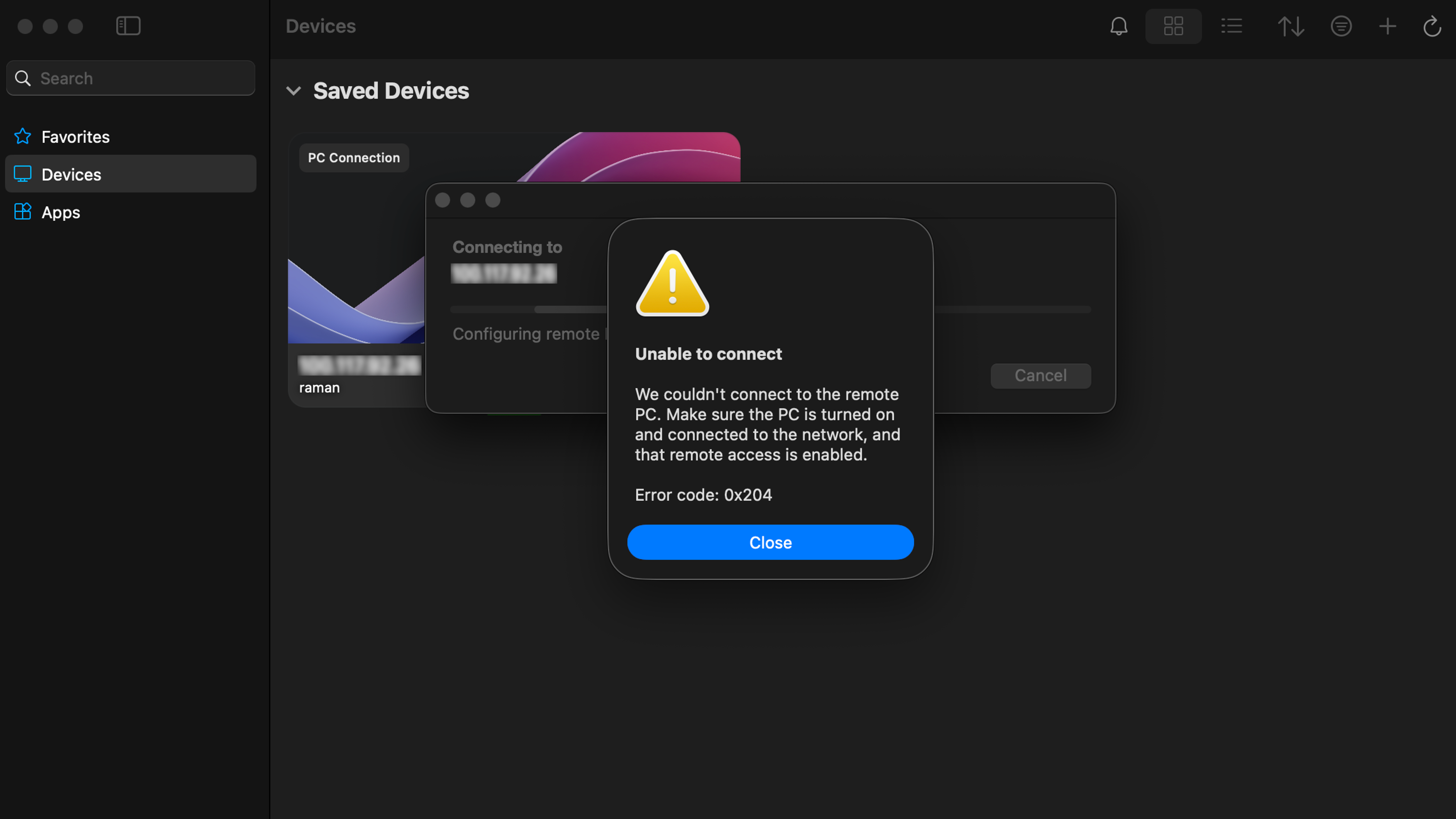
Ubuntu stores your Remote Desktop (RDP) password in an encrypted “vault” called the Keyring. When Ubuntu boots up—especially if you have Automatic Login enabled—it logs you into the desktop, but it does not unlock your “vault” because you haven’t typed your password yet. Since the vault is locked, the Remote Desktop service cannot “read” your RDP password. It essentially sits in a broken state, and the Windows App on your Mac gets a “Connection Refused” or “Internal Error” because the service isn’t fully authorized yet.
Let’s Fix It Permanently
Option A: Disable Automatic Login (Most Secure)
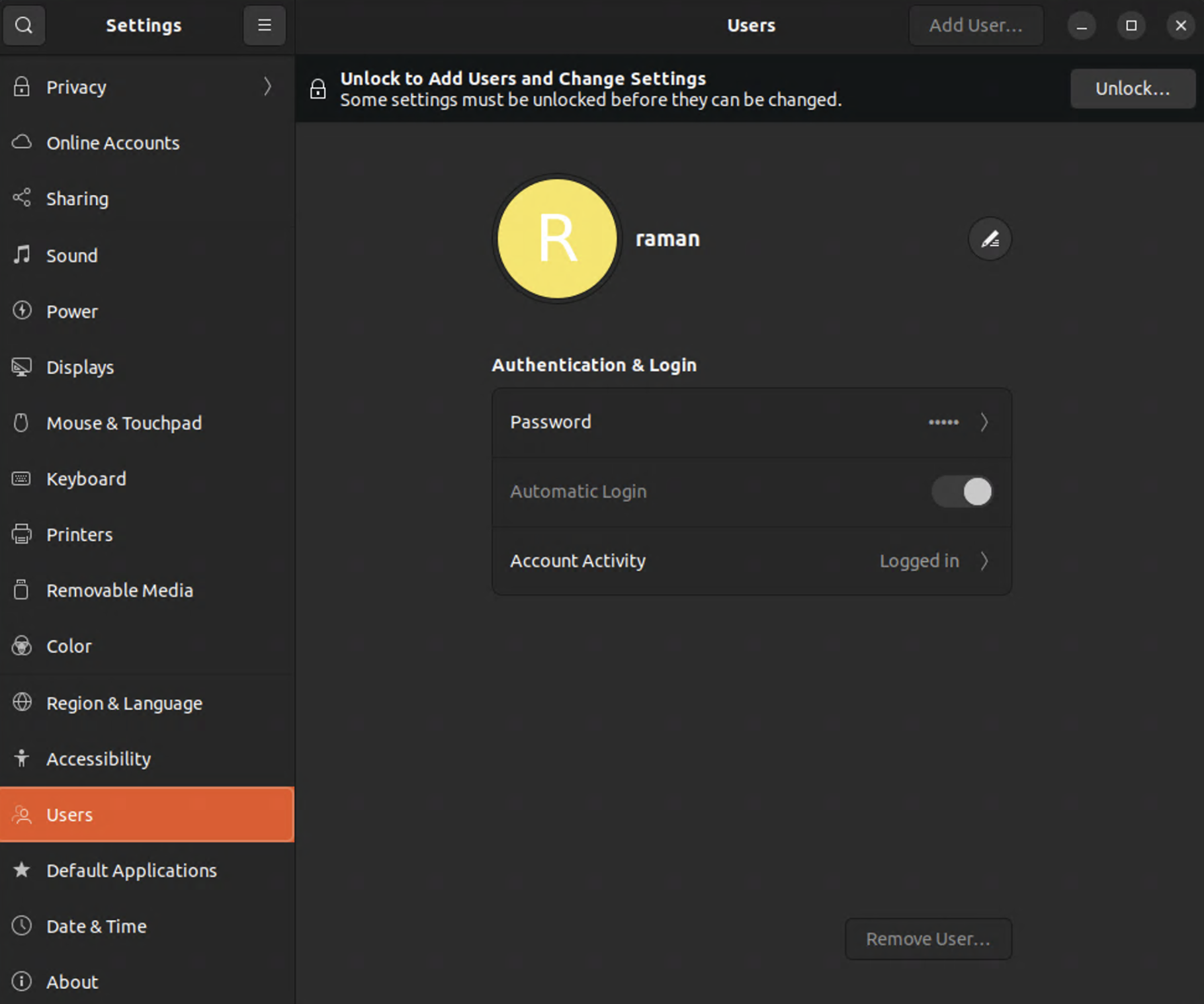
- Go to Settings > Users.
- Click Unlock (top right).
- Toggle Automatic Login to OFF.
Option B: Set a “Blank” Password for the Keyring (Most Convenient and Preferred One)
On Ubuntu, open the app called Passwords and Keys.

Right-click on the folder named Default keyring and Login (under “Passwords” on the left).
Select Change Password.

Enter your Current Password.
For the New Password, leave it completely blank and click Continue.
Confirm that you want to use “Unsafe Storage.”
Try to connect again, this time you will definitely will get rid of that issue.