
Purpose
In the embedded system working field often may need to use multiple PCs for development or debugging purpose. We often use AnyDesk for the remote desktop access. But for console remote access we must be in the same network or we need to use VPN to access the device console. In this article we’re going to see how can we access Device-A from Device-B by different network using TailScale software at zero cost.
Let’s consider this scenario, Device-A is running Ubuntu OS and it’s located in your office. Device-B is running Mac OS and you will carry this whereever you go and often connected to different network.
Setting Up a Remote Console Access System
Device-A Running Ubuntu OS Connected to the Office Network
- Install SSH server.
1 | $ sudo apt update |
- Install Tailscale.
1 | $ curl -fsSL https://tailscale.com/install.sh | sh |
- It will provide a link in the terminal. Open it in your browser, log in (using Google, Microsoft, or GitHub), and your Ubuntu machine is now part of your private network.
Device-B Running Mac OS Connected to the Home or Coffee Shop Network
- Install SSH server.
1 | $ brew update |
Install Tailscale from the App Store. Open the app & Log in using the same account you used for Device-A.
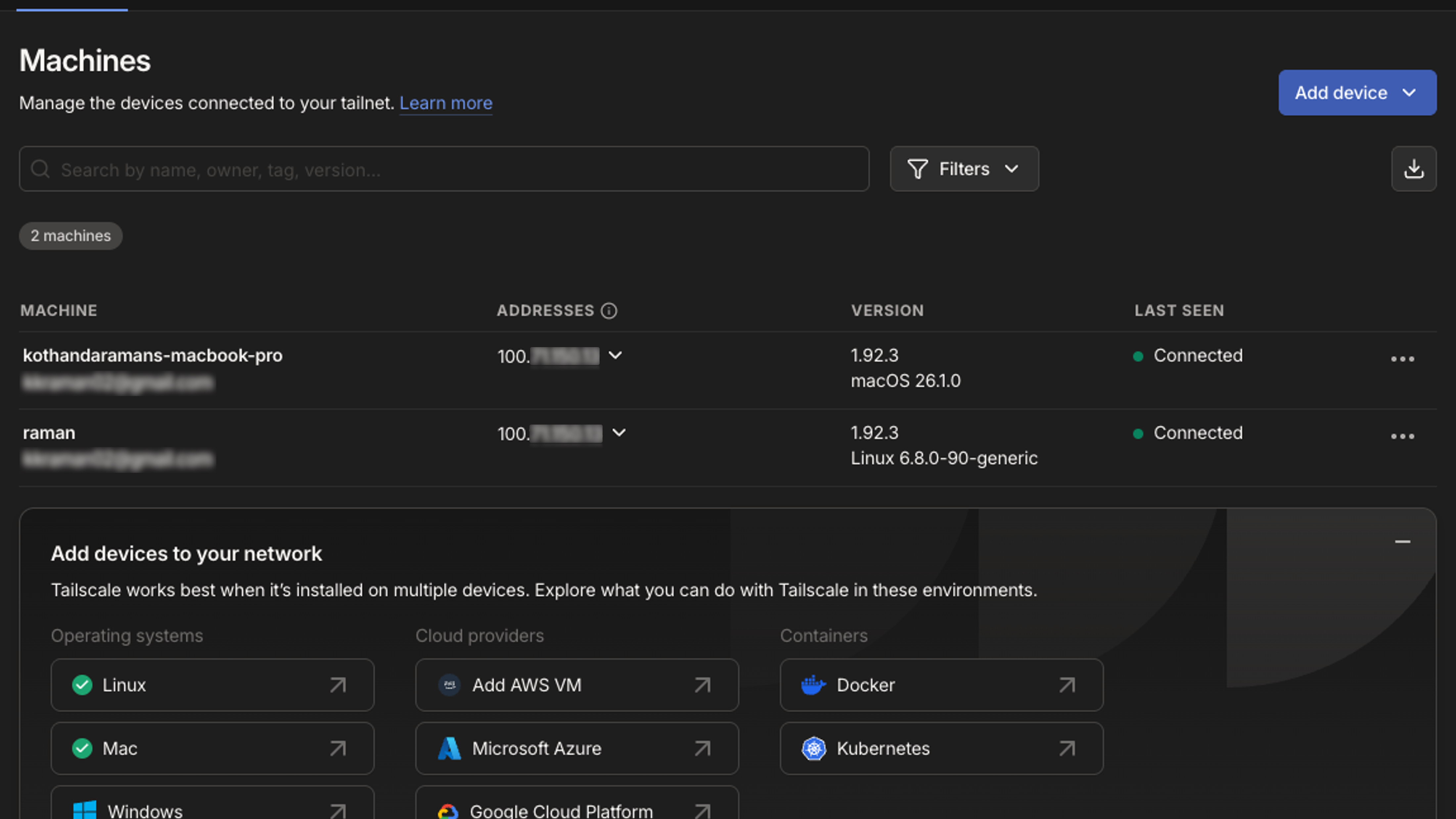
Install Tailscale app on your Mac (in the top menu bar), you will see your Ubuntu machine listed with its own IP address (it usually starts with 100.x.y.z). Copy that IP address.
You can also manage devices connected to your Tailscale by clicking the below link,
https://login.tailscale.com/admin/machines

Setting Up a Remote Desktop Access System
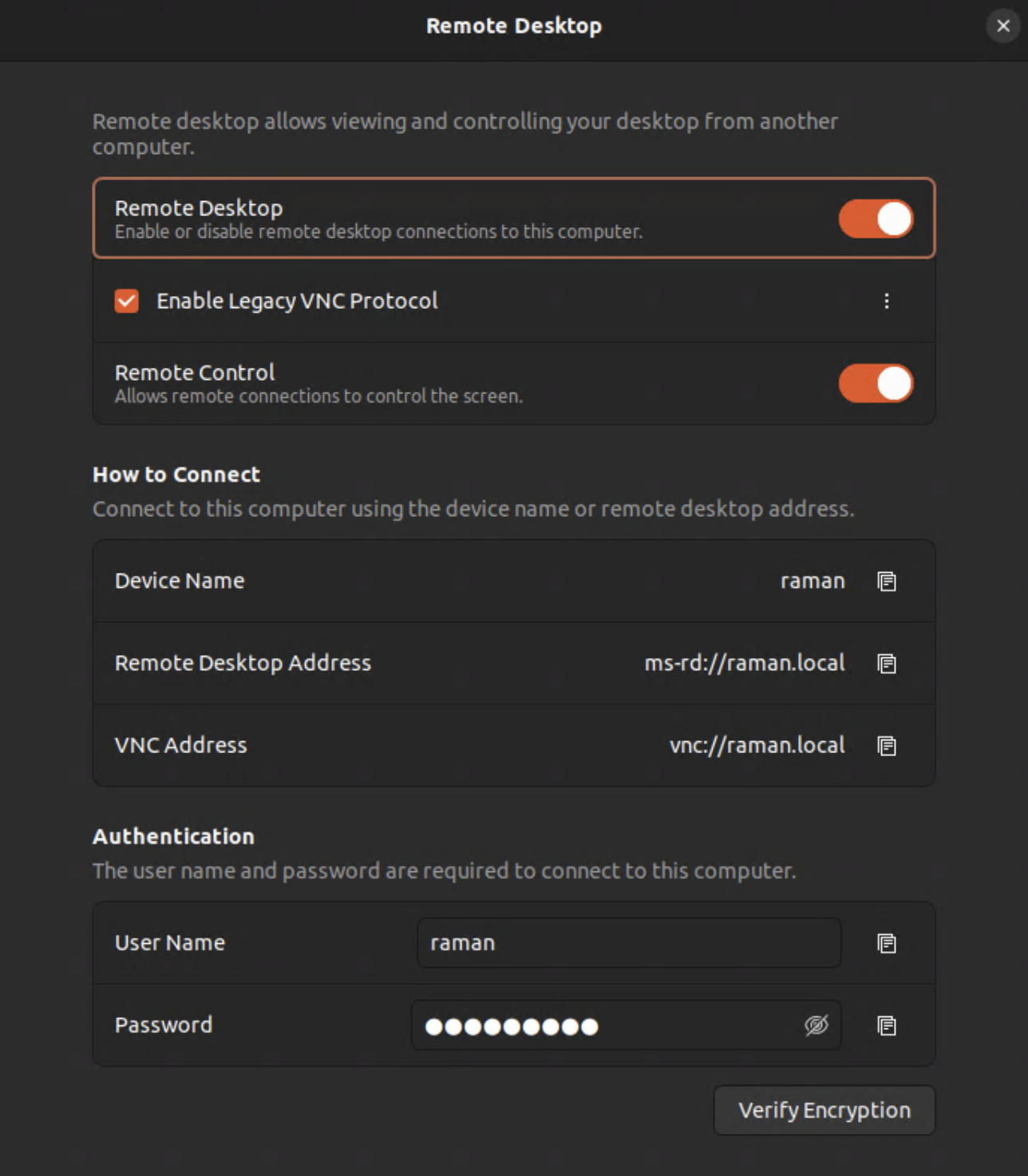
You can also use the native Ubuntu Remote Desktop features, which can be combined with the Tailscale method for a full graphical remote experience.
Device-A Running Ubuntu OS Connected to the Office Network

Device-B Running Mac OS Connected to the Home Network
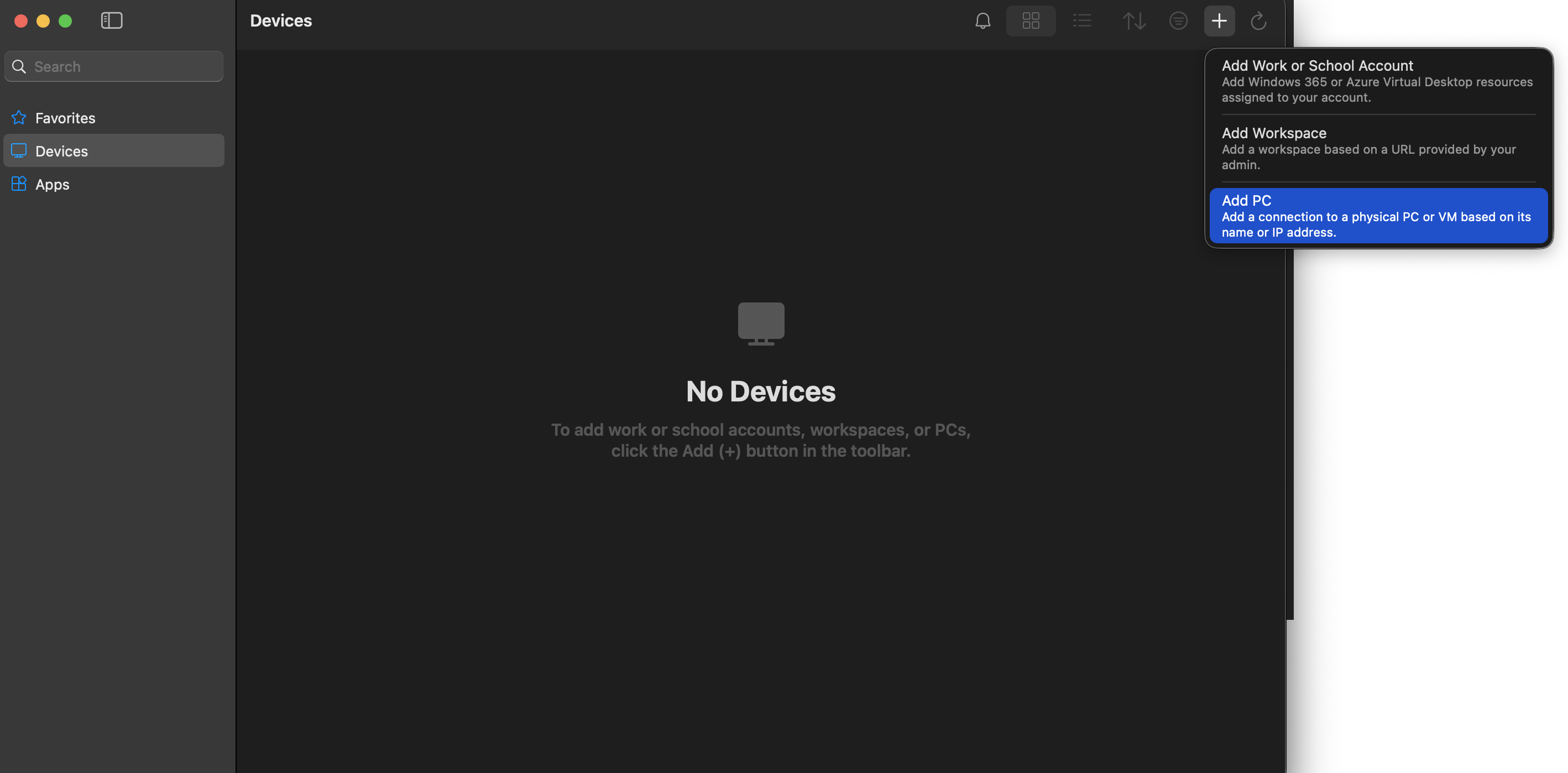
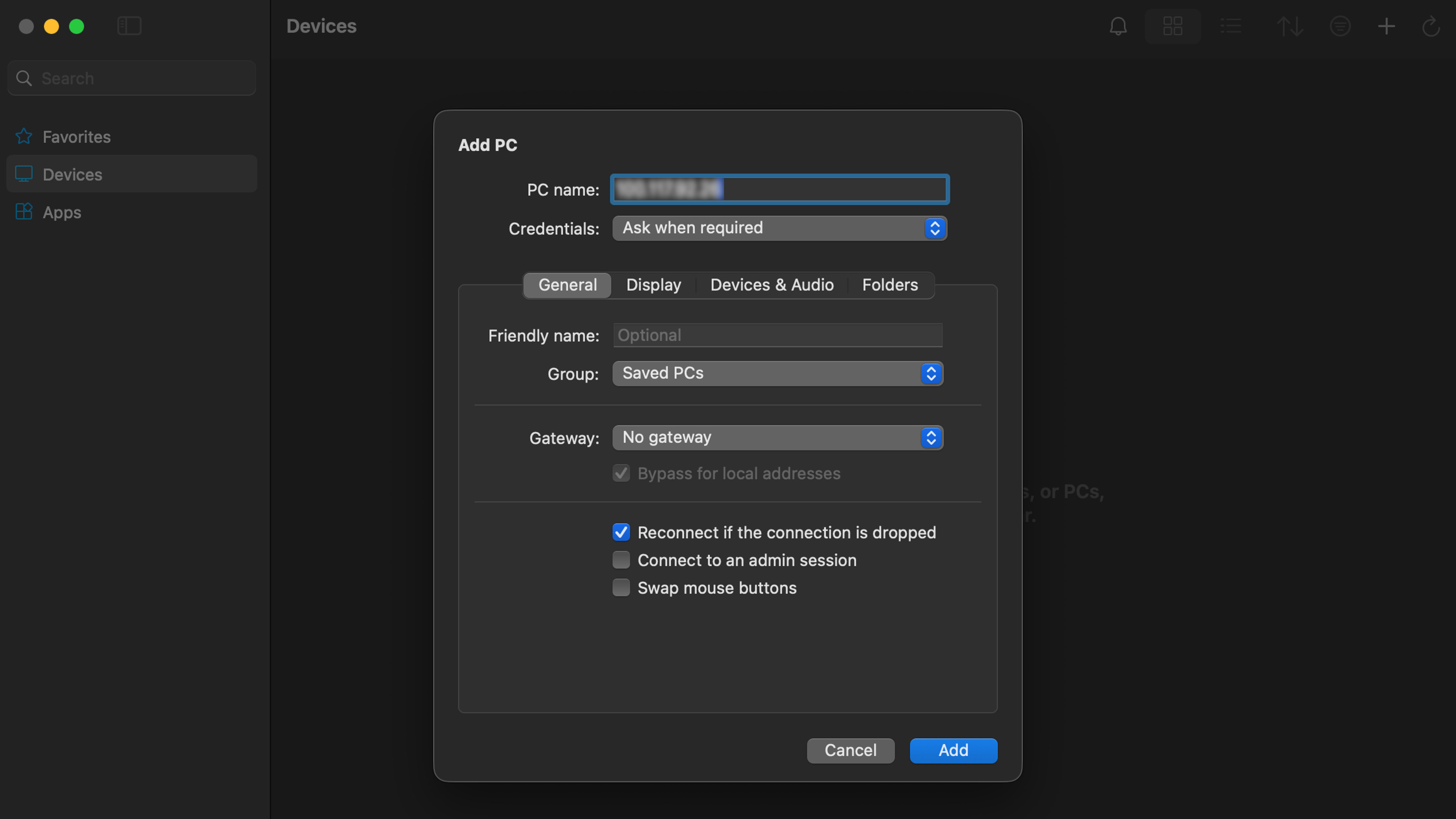
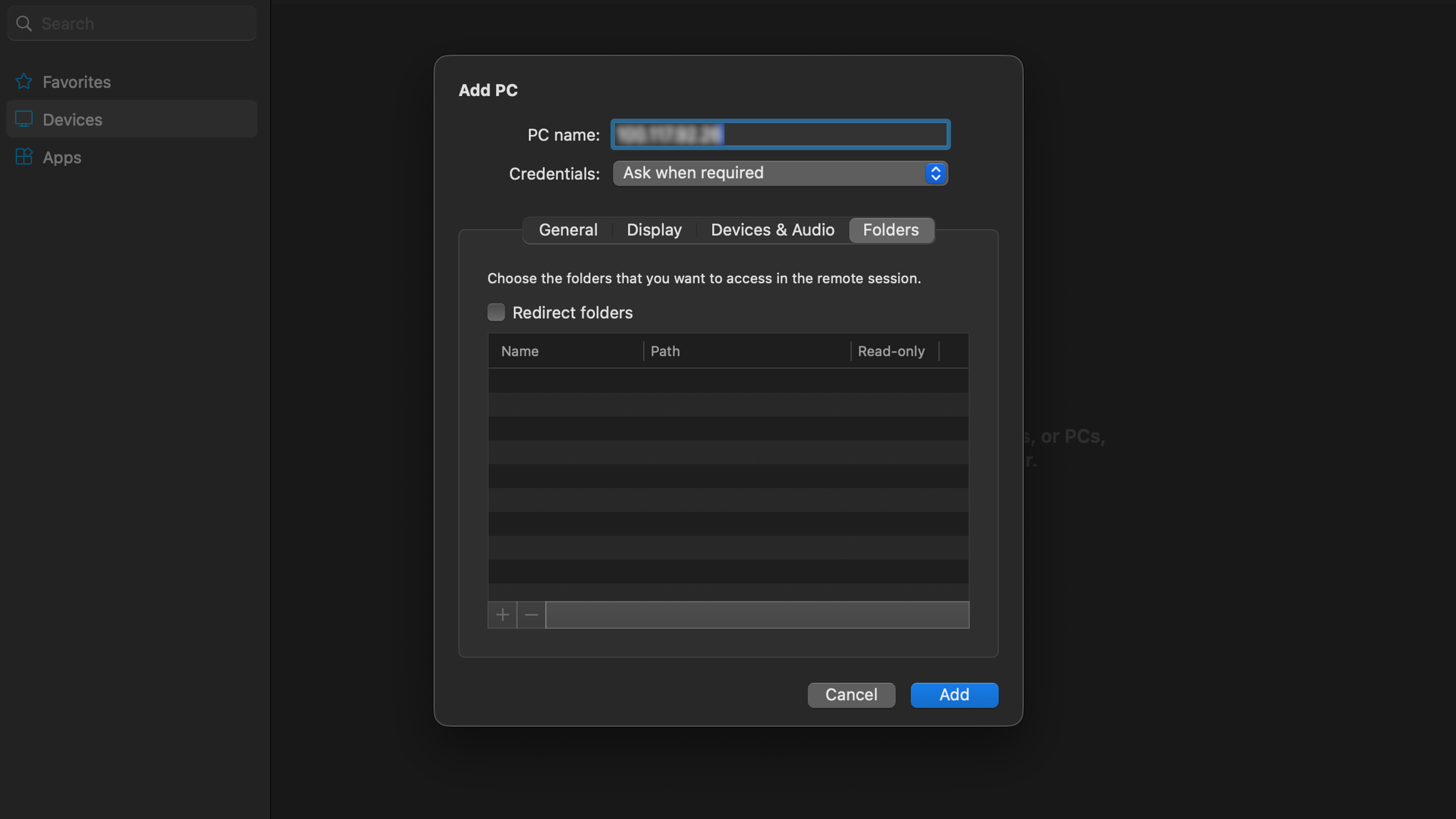
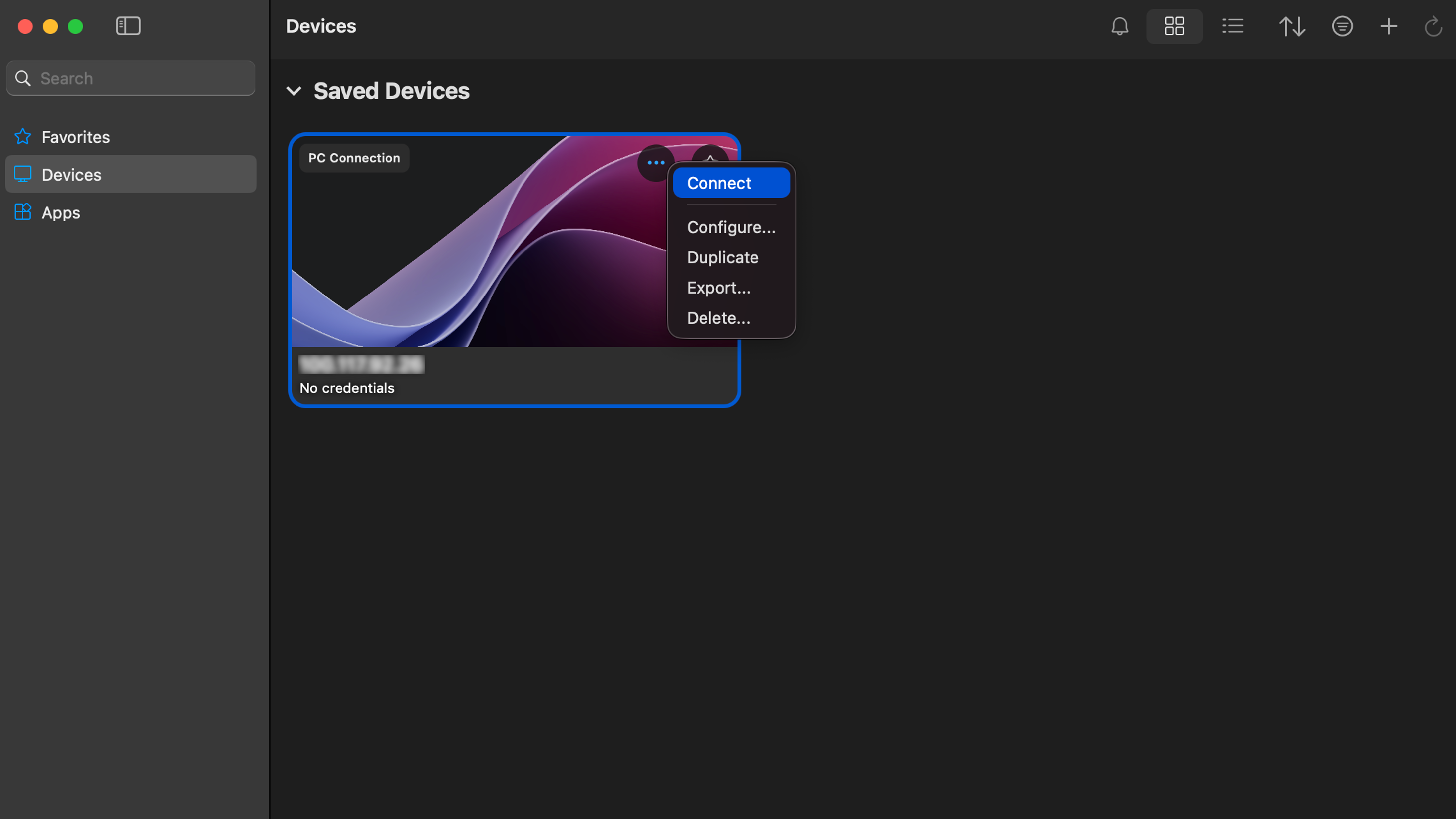
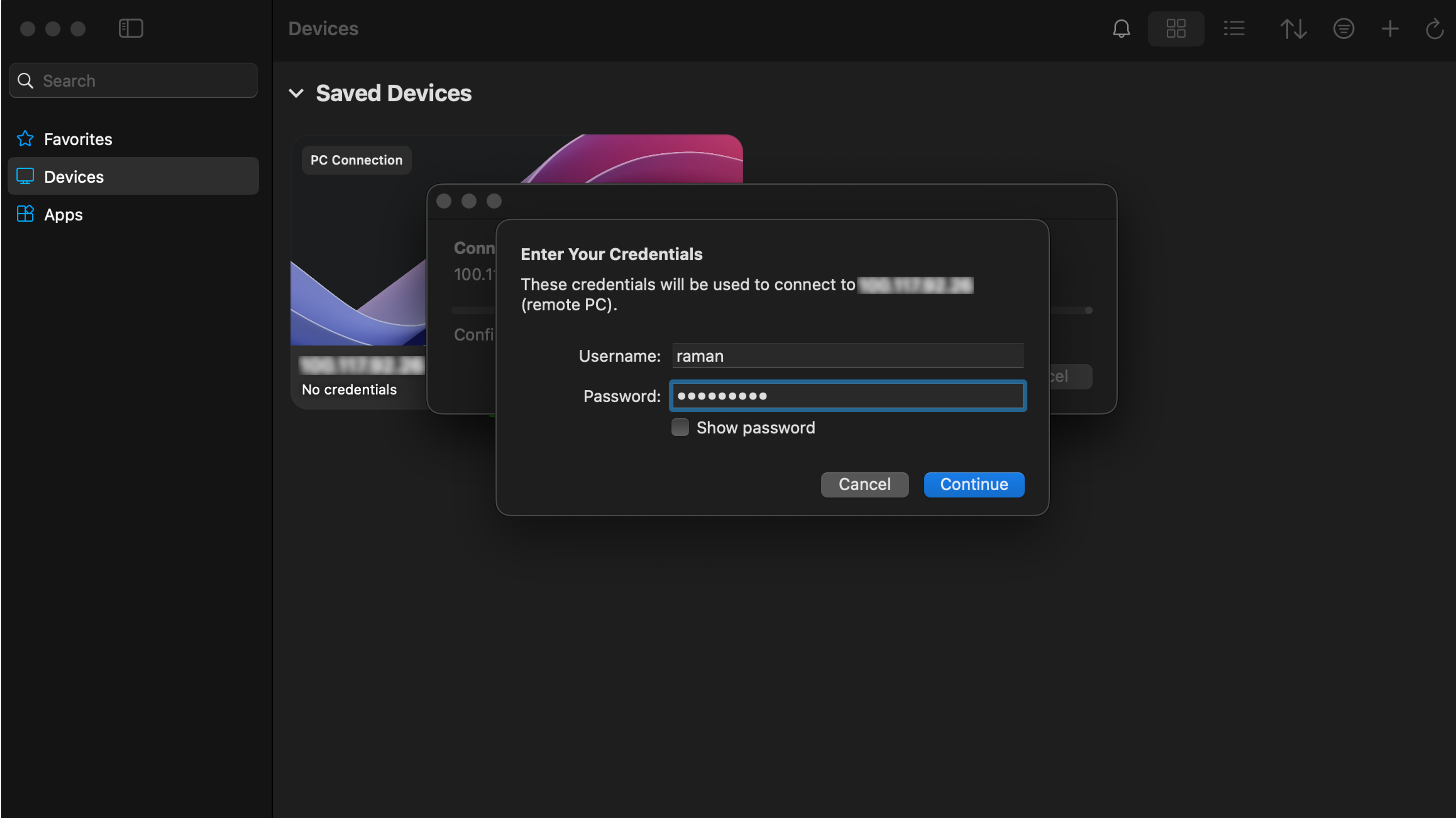
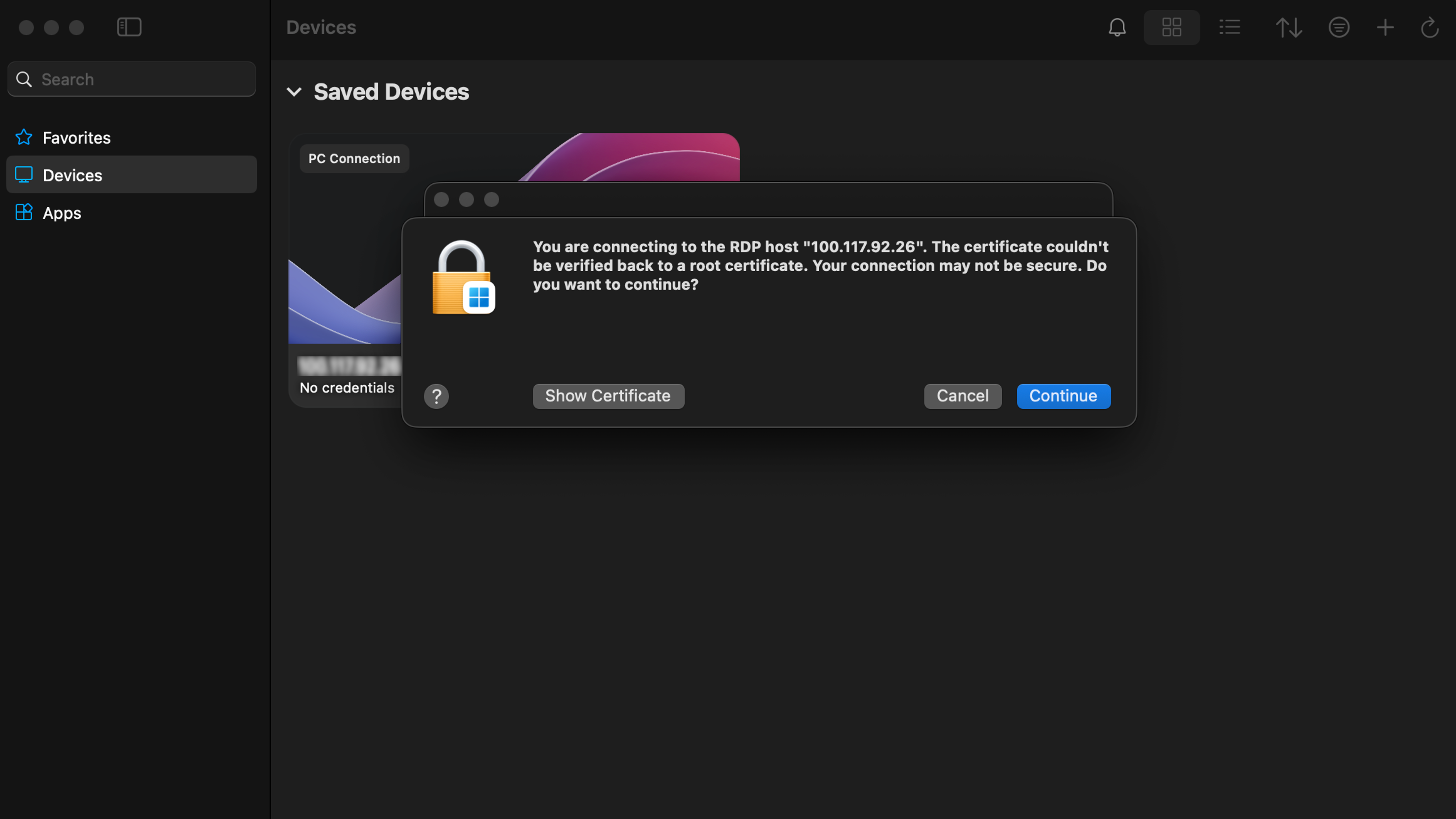
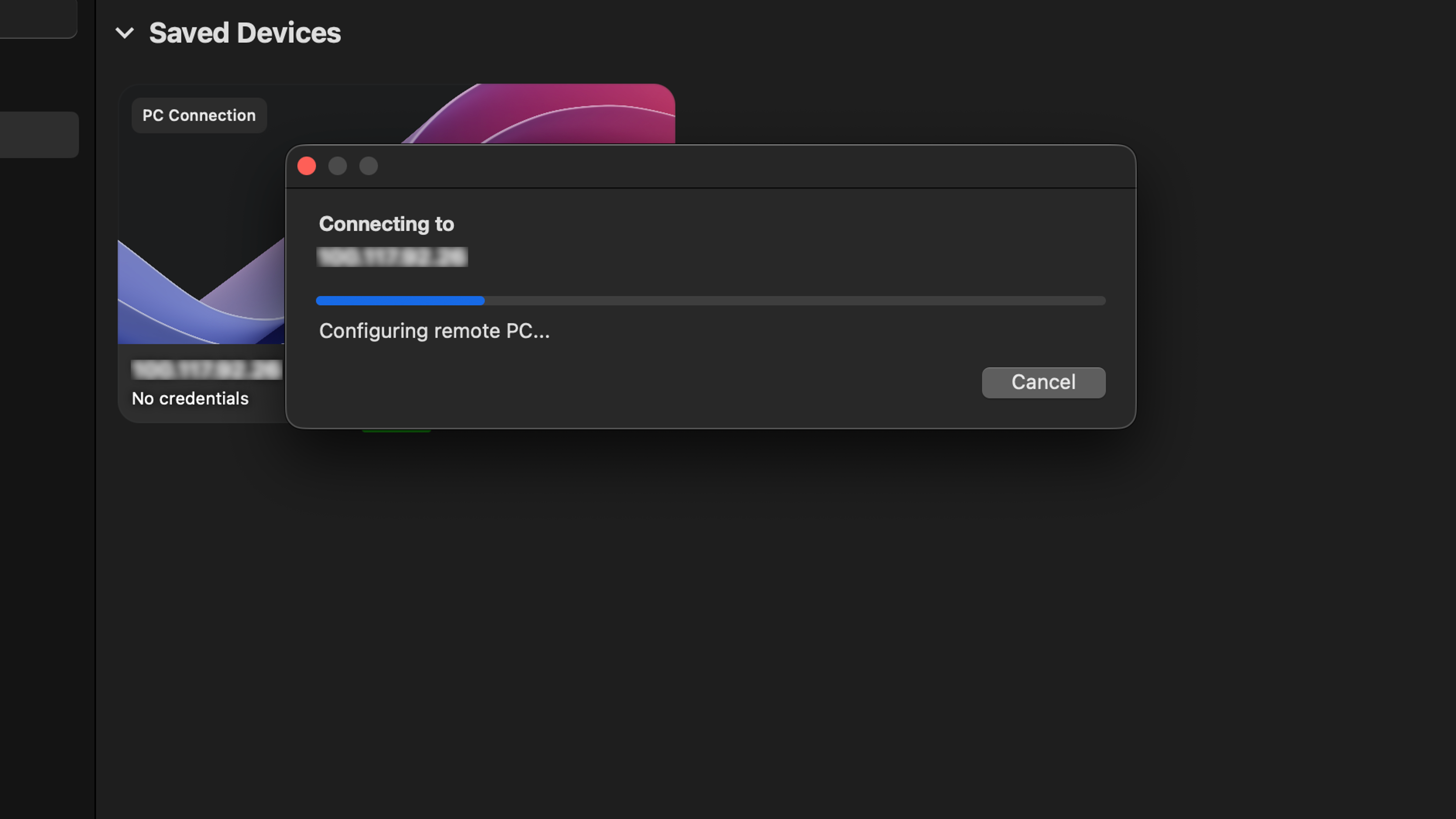
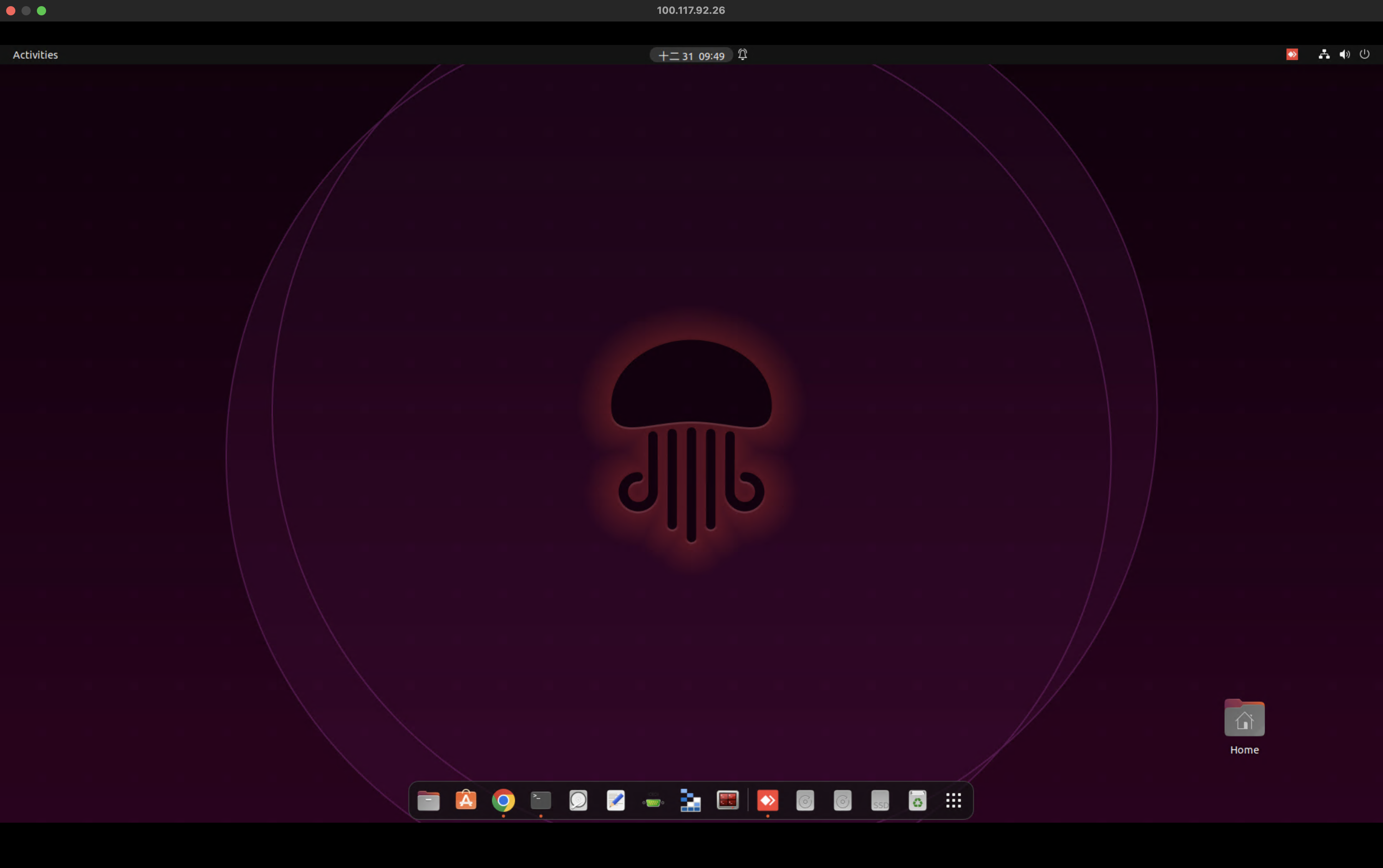
Install Windows App(previously it named as Windows Remote Desktop) in Device-B and enter Device-A’s Tailscale IP. Just simply follow steps as I mentioned in the following screenshots so you will get into to desktop quickly.